

Trybe connection
How do I see my Trybe earnings, payouts and approvals on TrybeDaily?
Set up My Results in Chrome, run your first full refresh, and fix the setup problems creators most often hit.
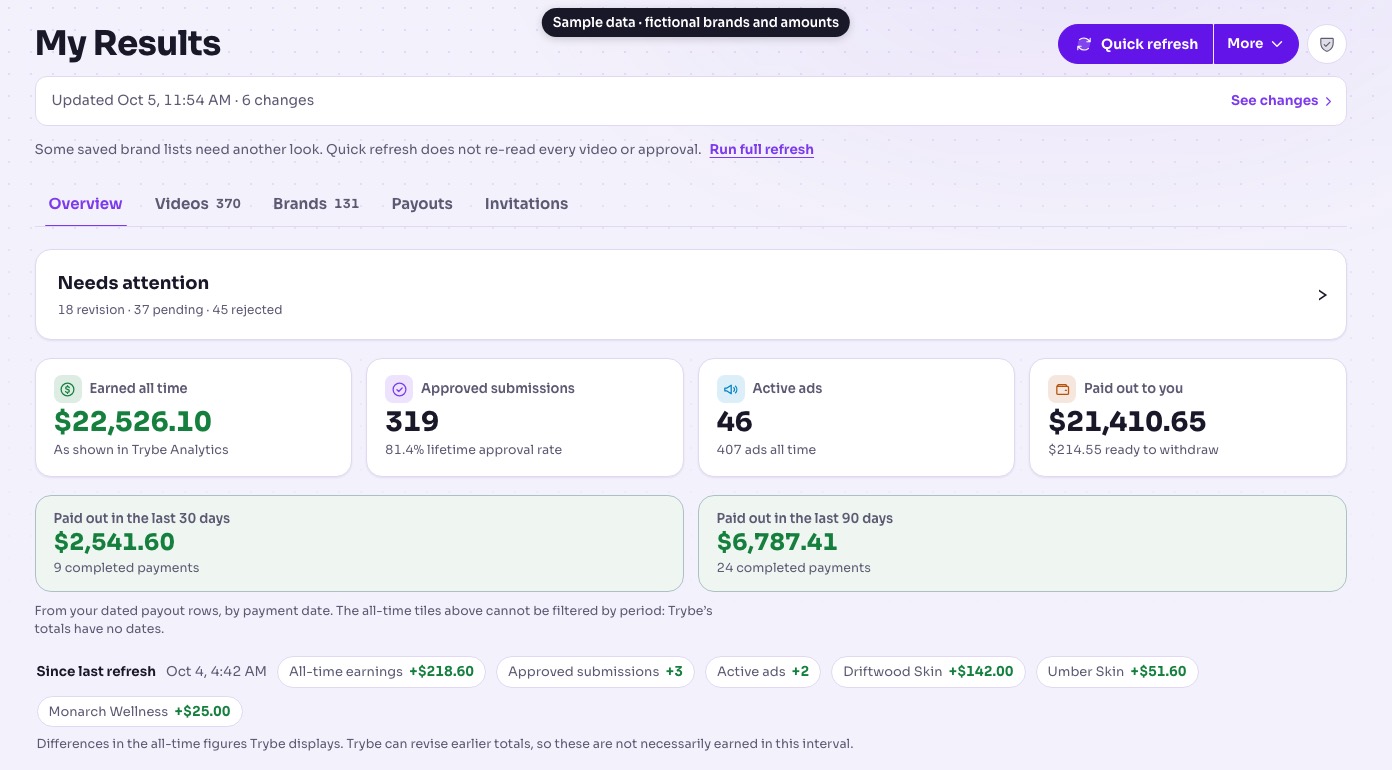
My Results gathers the earnings, payouts and submission statuses your Trybe creator dashboard shows you into one private page. Setup takes a few minutes the first time. For what the page shows and where results are kept, see What is My Results?.
What you need
- A laptop or desktop (Mac, Windows or Chromebook) with Chrome. Phones and tablets, including iPad, cannot run Chrome extensions.
- The TrybeDaily Connector from the Chrome Web Store. Developer mode is not needed.
- A TrybeDaily beta account with a connected Trybe account.
- One normal Chrome window (not Guest or Incognito) where you are signed in to both TrybeDaily and Trybe.
Saved results open on your phone too. Refreshing them needs the computer.
Set it up
- In Chrome on your computer, go to trybedaily.com/signin and choose Email me a code. Type the code into that same window.
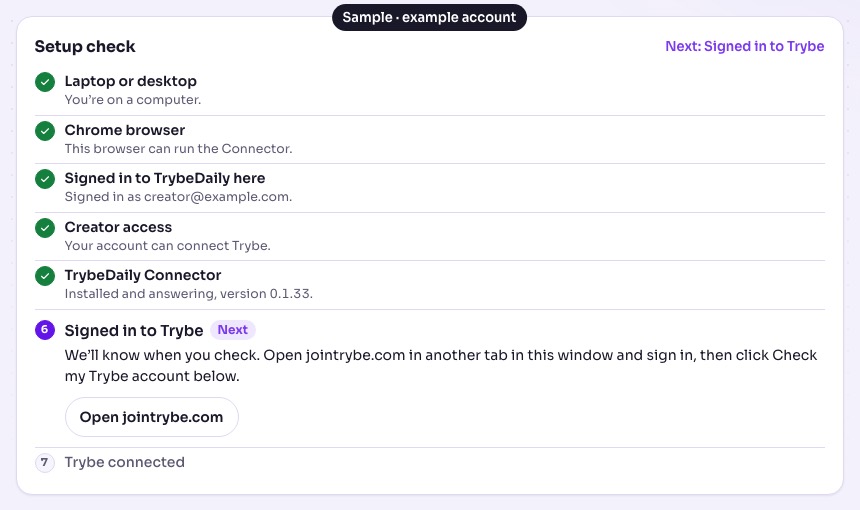
- Open Connect Trybe at trybedaily.com/verify. The setup check marks one step as Next and tells you what to do.
- If it asks for the Connector, choose Open the Chrome Web Store, add the TrybeDaily Connector, then reload the page.
- Sign in to jointrybe.com in another tab of the same window. Return and choose Check my Trybe account, review the preview and confirm it.
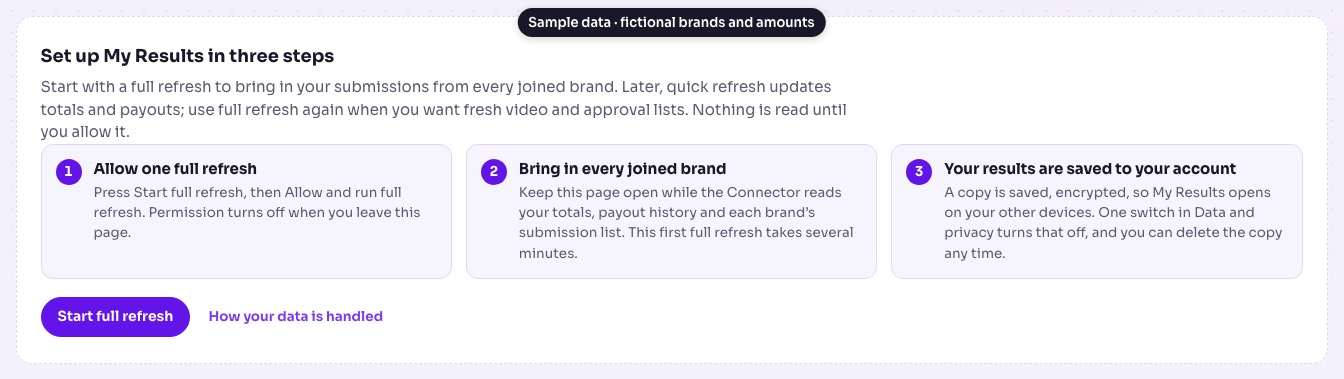
- Open My Results and press Start full refresh. Read the permission request, then choose Allow and run full refresh.
- Keep the page open for several minutes while it runs. Trybe pages may open briefly behind your tab. Leaving the page stops the refresh.

Keep it current
- Quick refresh updates your totals, brand cards, payouts and payout history in about a minute. It does not re-read every submission.
- Full refresh is under More. It also re-reads the submission list of every brand you joined. Run it every week or so; the page reminds you after 7 days.
- Joined a new brand? Re-check your connection on Connect Trybe first, then run a full refresh. See When should I re-check my Trybe connection?.
Troubleshooting
A sign-in link keeps opening another browser. Go to trybedaily.com/signin in Chrome, choose Email me a code and type the code there. Sign-ins do not carry between browsers. See How do I sign in by email?.
The Chrome Web Store said the Connector was added to your desktop. You opened the Store on a phone or tablet. Sign in to Chrome on your computer with the same Google account and the Connector appears there.
The Connector is not found or is too old. Check it is installed and turned on in Chrome, that you are not in a Guest or Incognito window, and reload. If the page says it is outdated, update it from the Chrome Web Store. See How do I install the Connector?.
Trybe asks you to sign in during a refresh. Sign in to jointrybe.com in another tab of the same window with the account you connected, then try again. A stopped refresh keeps your earlier results.
Your brand list could not be read. On Trybe, open My Brands, then View All, and wait for the full list. Return and check again.
A full refresh finished as partial. Some brand lists can time out. Your earlier results are kept and the page flags the lists that need another try. Run another full refresh, or open Data and privacy, then Advanced, to refresh one part.
Still stuck? Tell support the message you saw. Please do not send screenshots of earnings, brand details or account credentials.