

Where to find your Trybe earnings, and why the numbers disagree
Earned, paid out, pending and available are different numbers in different places on Trybe. Here is where each lives and how to keep track across brands.
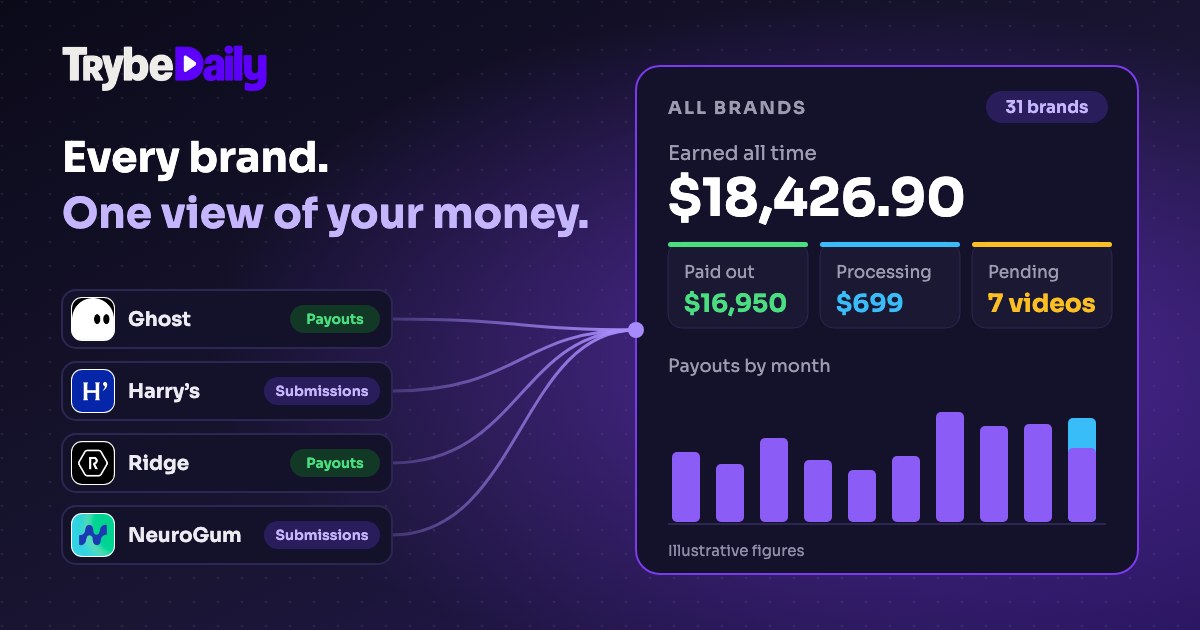
Ask a UGC creator how much they have made on Trybe and you will often get two answers. There is the earnings figure on one screen, the payout total on another, a balance that is neither, and a handful of brands where videos have been sitting in pending for weeks.
None of those numbers is wrong. They answer different questions, and they live in different places.
Key takeaways
- Analytics shows what you have earned; Payouts shows what has actually been paid.
- Balance, Upcoming, Processing and Available are stages of the same money, not four separate totals.
- Set the Analytics date range to All time before comparing it with lifetime payout figures.
- Earnings can keep arriving after approval on sales, per-order and ad-based programs.
- A ten-minute weekly check, starting with revision requests, catches most problems early.
This article walks through where each number sits on Trybe, why they rarely line up, and a simple weekly routine for keeping track when you work with many brands at once.
TrybeDaily is independent of Trybe. The screen labels below come from Trybe's creator web dashboard at jointrybe.com as it appeared when we wrote this. Trybe can rename or move them, and its phone app may lay the same figures out differently.
Where to find your earnings, approvals and payouts on Trybe
Trybe spreads your results over four kinds of screen. Each one is the right place for a different question.
| What you want to know | Where to look on Trybe | What it shows |
|---|---|---|
| How much you have earned | Analytics | Total Earnings, plus your top-earning videos with click-through and hook rate |
| How many videos were approved | Analytics, and your profile | Total Submissions split into Approved, Pending, Revision and Rejected, and an approval rate |
| How much has actually been paid | Payouts | Total Balance, Upcoming, Processing, Available, Total Payouts and a dated Payout History |
| How one brand is going | My Brands, then View All, and each brand's page | Earnings, Submissions and Approved per brand card, and the brand's My Submissions list |
Set Analytics to All time first
Analytics has a date range control. Before you compare its earnings or submission counts with anything lifetime, set it to All time.
A total for the last 30 days next to an all-time payout figure will always look like money is missing.
Per-brand results live in My Brands
The brand view is where most of the day-to-day work happens. Each card in My Brands shows the payment terms, a status and three counts.
Opening a brand and choosing My Submissions lists every submission for that brand with its status and date, and an amount where one was earned.
Why your Trybe earnings and payouts do not match
Most confusion comes from comparing two figures that measure different things. These are the usual culprits.
Earned is not the same as paid
Total Earnings on Analytics is what your submissions have earned. Total Payouts on the Payouts page is what has already been paid to you.
The gap between them is money that has been earned but not yet paid. That is what the Balance, Upcoming, Processing and Available figures are tracking.
Balance, upcoming, processing and available are stages
Read them as a pipeline rather than four separate totals:
- Balance is the amount not yet withdrawn.
- Available is the part ready to withdraw.
- Upcoming and processing are amounts still on the way.
If you need the exact rule for when an amount moves from one stage to the next, check Trybe's own help. That is Trybe's policy rather than something a dashboard can tell you.
The same payment can carry two labels
A payment row in Payout History has its own status, and the summary at the top of the page groups money under its own headings. They do not always use the same word for the same amount.
For example, a payment marked upcoming on its row can be the amount the summary counts as processing.
Approvals and submissions are counted in more than one place
Total Submissions on Analytics includes pending, revision and rejected videos, so it is usually larger than your approved count.
A brand card's submission count can also differ from the number of rows you see in that brand's My Submissions list. Trybe can group several submissions into one row, and long lists load gradually as you scroll.
Earnings keep arriving after approval
On a flat fee program the amount is usually settled when the video qualifies. On per-order or sales commission programs, and when a brand runs your video as an ad, earnings can keep growing for weeks.
Analytics shows how many of your ads are currently active, which is a good clue to where new earnings are coming from.
Totals can be revised
Trybe can correct earlier figures. A change between two checks is not always money earned in that interval.
The overall total and the sum of brands can differ
The all-time figure on Analytics and the per-brand figures on My Brands come from different views, and Trybe can count them differently. Small gaps are normal.
How to track Trybe results across many brands
With three or four brands, opening each one is fine. With thirty, the useful questions get hard to answer:
- Which brands have something waiting on me?
- Which have had videos in pending the longest?
- When did each payment actually land?
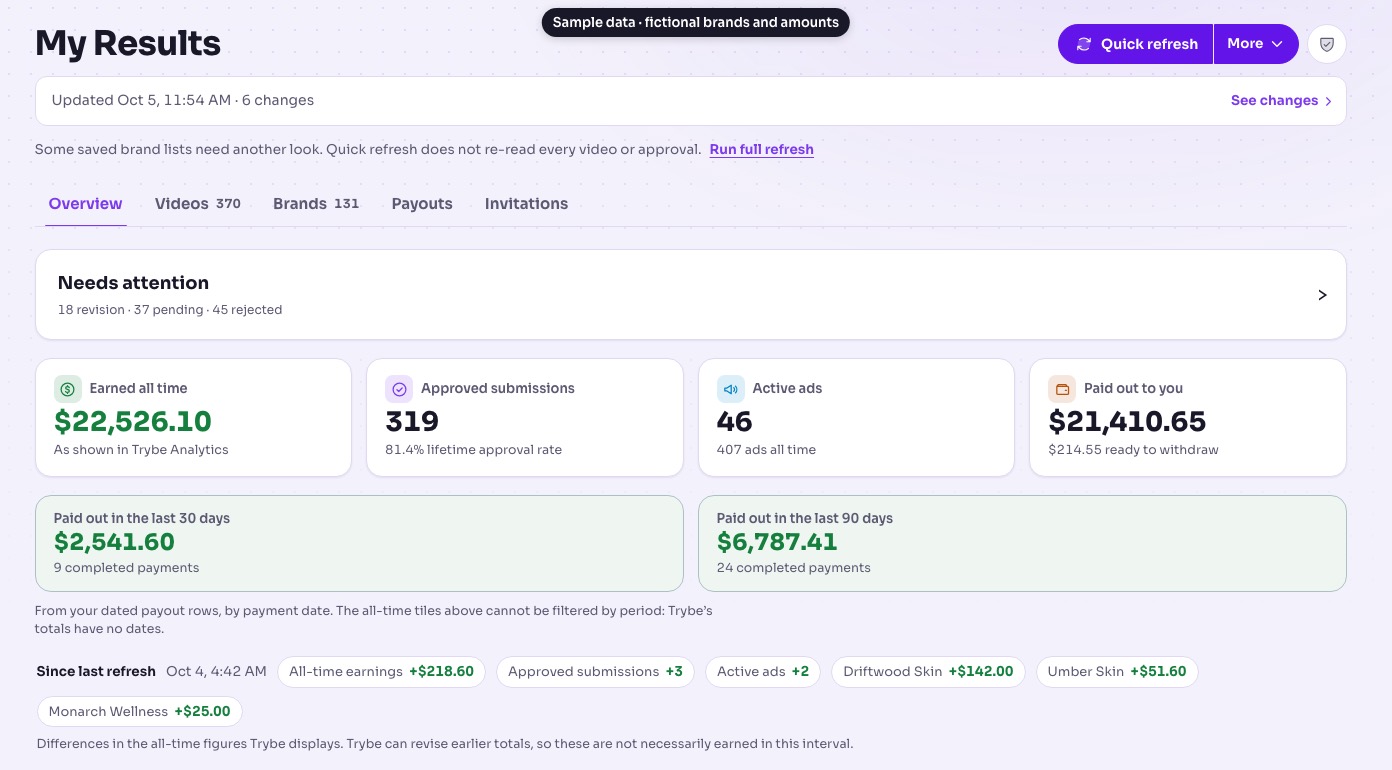
That is the problem TrybeDaily's My Results page is built for. With your permission, the TrybeDaily Connector for Chrome reads the same Analytics, Payouts, profile and My Brands screens described above, plus each joined brand's submission list, and puts them on one private page.
It reads only what your Trybe dashboard already shows you and never your password, bank details or chats.
See which brands are waiting
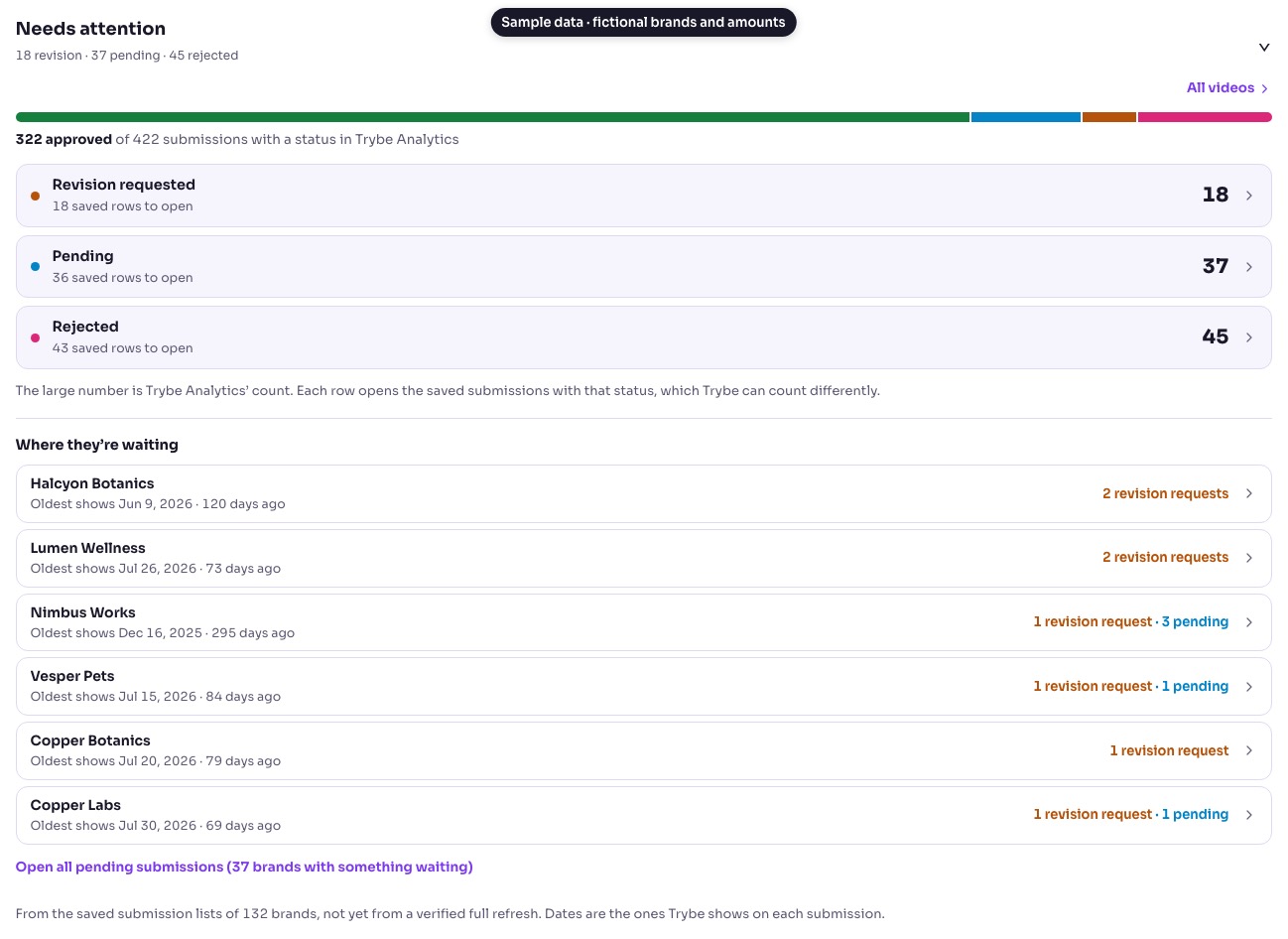
Under Needs attention, a section called Where they're waiting lists the brands with revision requests or pending submissions, with how many of each and the oldest date Trybe shows for them.
Revision requests come first, because those are waiting on you rather than the brand.
See payouts by month and by brand
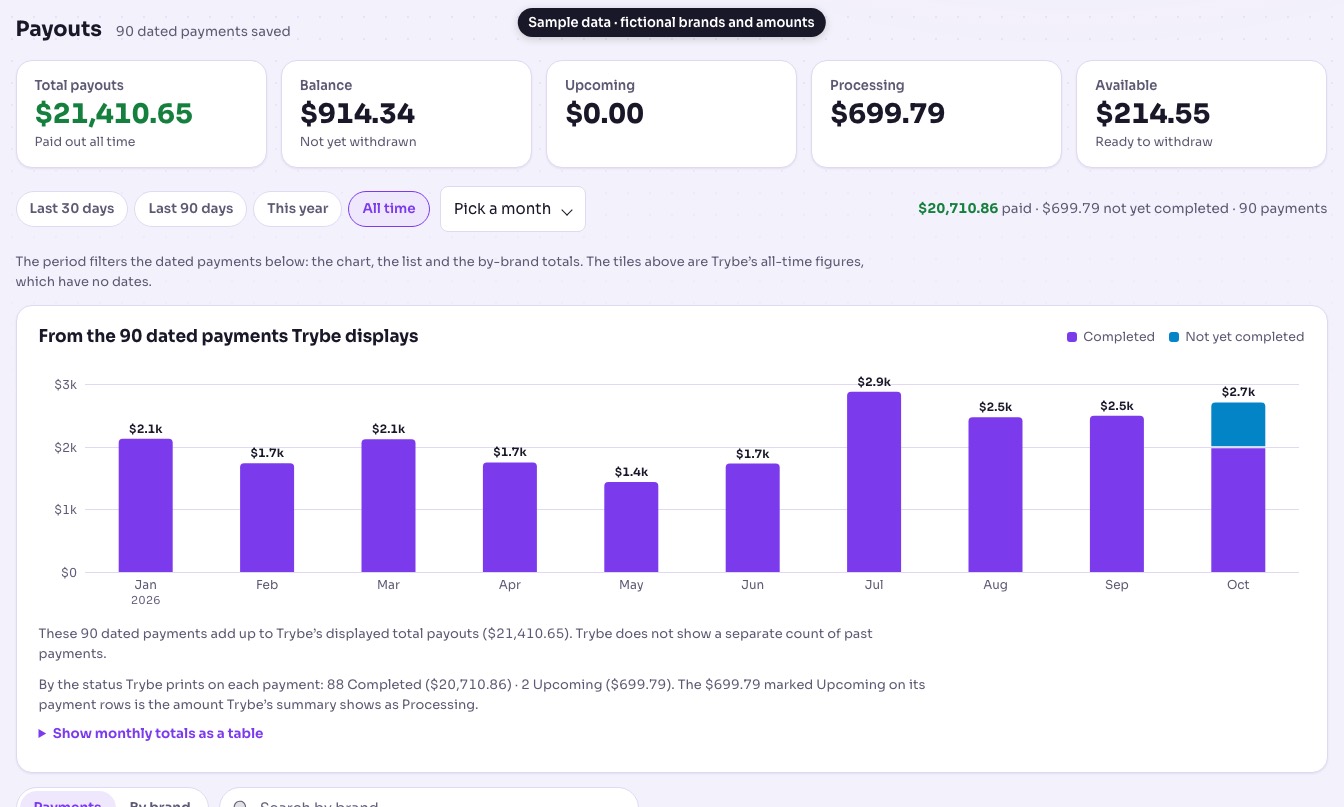
The Payouts tab keeps Trybe's all-time tiles at the top and turns Payout History into a monthly chart and a by-brand view you can filter by period.
It also points out when a payment row and the summary use different labels for the same amount.
My Results is part of the free TrybeDaily beta and needs Chrome on a laptop or desktop to refresh. Our Help guide on seeing your Trybe earnings, payouts and approvals on TrybeDaily has the setup steps and fixes for common problems.
A ten-minute weekly routine for Trybe earnings
Whether you use Trybe on its own or with My Results, the same short check once a week catches most problems early.
- Clear revision requests first. They are the only status that is waiting on you, and they are the quickest money to unlock.
- Look at pending by age, oldest first. Note any brand where a video has been pending noticeably longer than your others.
- Check Available and Processing on Payouts. If an amount has sat in processing much longer than usual, that is worth a question.
- Glance at active ads. A rise usually explains a jump in earnings that a new approval does not.
- Note anything new in Payout History, so you can match it to your bank later.
What a long pending wait on Trybe means
A long wait is a signal to look, not proof that something is wrong. The date on a submission is when it was made, not when the brand started reviewing it, and some brands review in batches.
Check the brand's program on Trybe for anything about review timing. Where it is available, the Trybe Score on the brand's TrybeDaily page is Trybe's own read on how responsive the brand is, though it guarantees nothing about your video.
When and how to ask
If a video has been pending well beyond what is normal for that brand, a short, polite question through Trybe's own messaging is reasonable. Lead with the submission date and the product, and ask whether anything is needed from you.
If the issue is a payment rather than a review, Trybe's support is the right place, not the brand. Our article on finding the right contact covers how to keep a message specific and easy to answer.
Short answers
Why is my Total Earnings higher than Total Payouts?
Some of what you have earned has not been paid yet. That difference is tracked by Balance, Upcoming, Processing and Available.
Why does my approval rate look different in two places?
Analytics follows the date range you choose. Check that it is set to All time before comparing with lifetime counts.
Does TrybeDaily change anything on Trybe?
No. My Results only reads what your dashboard displays. It does not submit videos, message brands or accept programs.
Sources
About this article
Written by the TrybeDaily team and published . Sources are listed above. TrybeDaily is an independent research site, separate from Trybe. Always confirm current program terms in Trybe.
Next steps on TrybeDaily
- Help: set up My ResultsConnect Chrome and refresh your Trybe results.
- Help: what is My Results?What the private results page shows.
- Help: Trybe payment modelsComparing payment models and program caps.